Finance Functions APIs
There are many functions that use MemberID as an integer to pass in as a property. These functions get the current POV of the specific Dimension member to perform a variety of tasks, such as:
-
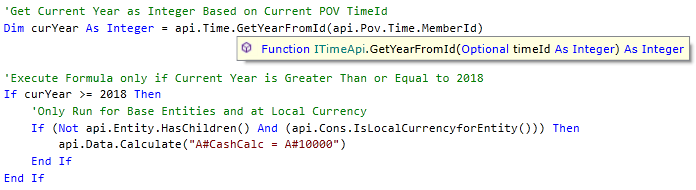
Get Current Year based on Time POV
- Example: Api.Time.GetYearFromId(api.Pov.Time.MemberId)
- Get Text field value from Entity POV
- Example: Api.Entity.Text(api.Pov.Entity.MemberId, 1)
- Get Account Type based on current Account POV
- Example: Api.Account.GetAccountType(api.Pov.Account.MemberId)
When working with formulas and calculations, it is better to work with MemberId versus Member Name.
Finance Functions APIs › Member ID
Api.Pov.Time.MemberId is obtained from the Time Member Id for the current POV being executed during the calculation. The Time.MemberId is stored as an unique integer to represent a single Time member. The uniqueness is determined by the combination of the Year and Period.
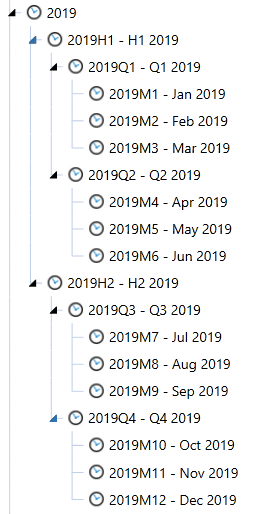
H1 = 001
Q1 = 002
M1 = 003
M2 = 004
M3 = 005
Q2 = 006
M4 = 007
M5 = 008
M6 = 009
H2 = 010
Q3 = 011
M7 = 012
M8 = 013
M9 = 014
Q4 = 015
M10 = 016
M11 = 017
M12 = 018
The Time MemberId is constructed like this: 2019003000
The api.Pov.Time.MemberId is used as a property in many functions. Here are some of the most common functions:
-
api.Time.GetYearFromId
-
api.Time.GetPeriodNumFromId
-
api.Time.GetNumDaysInTimePeriod
-
api.Time.AddTimePeriods
-
api.Time.AddYears
Api.Pov.Time.MemberId Usage
Example using api.Pov.Time.MemberId:

ErrorLog result:

Example using api.Pov.Time.MemberId in a working formula:
Finance Functions APIs › Member ID
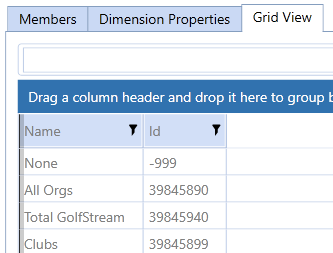
Api.Pov.Entity.MemberId is obtained from the Entity Member Id for the current Entity POV being executed during the calculation. The Entity.MemberId is stored as a unique integer to represent a single Entity member. The Entity Member Id is also found using the Grid View in the Entity Dimension Library.
Api.Pov.Entity.MemberId is used as a property in many functions. Here are some of the most common functions:
-
Get Local Currency Id for current Entity POV.
-
Example: api.Entity.GetLocalCurrencyId(api.Pov.Entity.MemberId)
-
-
Get Local Currency Cons Member Name for current Entity POV.
-
Example:
api.Entity.GetLocalCurrencyConsMember(api.Pov.Entity.MemberId).Name
-
-
Get value in Text Field for Dimension Members prior to executing formula calculation.
-
Example: api.Entity.Text(api.Pov.Entity.MemberId, 1)
-
-
Get Percent Consolidation for Parent Child Relationship and specific to user localization. Can also determine by Scenario Type and Time.
-
Example: api.Entity.PercentConsolidation(api.Pov.Entity.MemberId, api.Pov.Parent.MemberId, api.Pov.ScenarioTypeId, api.Pov.Time.MemberId).XFToStringForFormula
-
-
Get Percent Ownership for Parent Child Relationship and specific to user localization. Can also determine by Scenario Type and Time.
-
Example: api.Entity.PercentOwnership(api.Pov.Entity.MemberId, api.Pov.Parent.MemberId, api.Pov.ScenarioTypeId, api.Pov.Time.MemberId).XFToStringForFormula
-
Api.Pov.Entity.MemberId Usage
Example using api.Pov.Entity.MemberId:

ErrorLog Result:

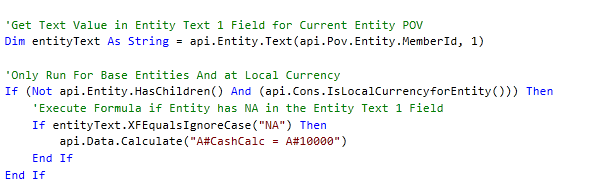
Example using api.Pov.Entity.MemberId in a working formula:
Finance Functions APIs › Member ID
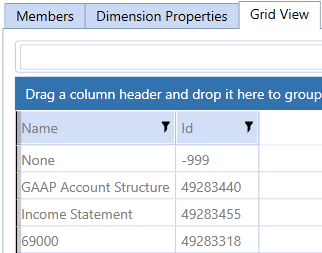
Api.Pov.Account.MemberId is obtained from the Account Member Id for the current Account POV being executed during the calculation. The Account.MemberId is stored as a unique integer to represent a single Account member. The Account Member Id is also found using the Grid View in the Account Dimension Library.
Api.Pov.Account.MemberId is used as a property in many functions. Here are some of the most common functions:
-
Get Account Type based on current Account POV
-
Example: api.Account.GetAccountType(api.Pov.Account.MemberId)
-
-
Get value in Text Field for Dimension Members prior to executing formula calculation
-
Example: api.Account.Text(api.Pov.Account.MemberId, 1)
-
Api.Pov.Account.MemberId Usage
Example using api.Pov.Account.MemberId :

ErrorLog Result:

Example using api.Pov.Account.MemberId in a working formula:

Finance Functions APIs
DimPk is known as Dimension Primary Key. This is a unique primary key that is assigned to Dimensions when they are created. It is a combination of the DimTypeId and the DimId.
DimPk is commonly used to identify which Dimension should be used when checking for members as base members or descendants in a specific Dimension. DimPk is commonly used in the following functions:
-
Get Dimension Primary Key of a Specific Dimension
-
Example: api.Dimensions.GetDim("UD1DimName").DimPk
-
-
Check if it is a Base Member of a Specific Ancestor
-
Example: api.Members.IsBase(dimPk, ancestorMemberId, baseMemberId, dimDisplayOptions)
-
-
Get Base Members of Parent from GetMember
-
Example: api.Members.GetBaseMembers(api.Pov.UD1Dim.DimPk, parent.MemberId, Nothing)
-
Finance Functions APIs › Dimension Primary Key - DimPk



Finance Functions APIs
Dimension Type Id is a property of DimPk. The Dimension Type Id is a unique integer Id that is assigned to a Dimension. The DimTypeId is found in the Dim table and the DimTypeId represents each Dimension.
-
Entity = 0
-
Scenario = 2
-
Account = 5
-
Flow = 6
-
UD1 = 9
-
UD2 = 10
-
UD3 = 11
-
UD4 = 12
-
UD5 = 13
-
UD6 = 14
-
UD7 = 15
-
UD8 = 16
The DimTypeId is used in various functions. DimTypeId is most commonly used with the GetMember or GetMemberId functions where the first property in the function is DimTypeId. In this case, GetMember and GetMemberId needs to know which Dimension Id to use for the member the function is looking for.
-
Get a specific Member in a specific Dimension
-
Example: api.Members.GetMember(DimType.Account.Id, "AcctMemberName")
-
-
Get Member Id for a specific Member in a specific Dimension
-
Example: api.Members.GetMemberId(DimType.Account.Id, "AcctMemberName")
-
Finance Functions APIs › Dimension Type Id


Finance Functions APIs
Stored calculations run based on the Data Unit POV. The Data Unit Dimension consists of Cube, Entity, Parent, Consolidation, Time, and Scenario.
Because stored calculations run off Data Unit Dimensions, these Dimensions are used as part of If Statements to execute calculations on conditions. The Data Unit Dimensions should not be used as destination data buffers, and should not be used on the left hand side of the equation in a api.Data.Calculate formula.
Account related Dimensions such as Account, Flow, and UD’s are not available at run-time of the calculations. Therefore, they cannot be used in the If Statements for stored calculations. However, they are available for Dynamic Calculations.
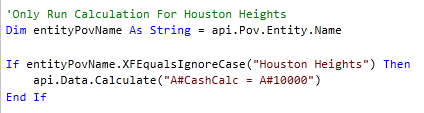
Run for POV and Check Member Names for Data Unit Dimensions Before Executing Calculation:
-
If api.Pov.Cube.Name.XFEqualsIgnoreCase("CubeName") Then
-
If api.Pov.Entity.Name.XFEqualsIgnoreCase("EntityName") Then
-
If api.Pov.Scenario.Name.XFEqualsIgnoreCase("ScenarioName") Then
-
If api.Pov.Cons.Name.XFEqualsIgnoreCase("USD") Then
Finance Functions APIs › Data Unit Dimension POV



Finance Functions APIs
Finance Functions APIs › Time Functions
Finance Functions APIs › Time Functions
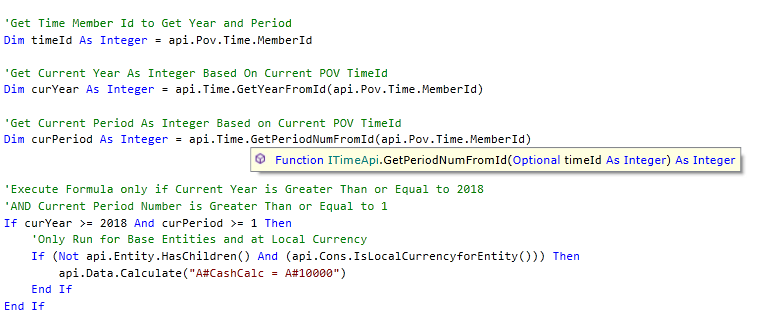
This function gets the period number from the current POV Time Id. The period is static and is configured with either months or weeks followed by the period number. For example: M1 – M12 or W1 – W54. It evaluates the period number and then introduces logic to execute the formula.
Api.Time.GetPeriodNumFromId Usage
Example using api.Time.GetPeriodNumFromId :

ErrorLog Result:

Example using api.Time.GetPeriodNumFromId in a working formula:
Finance Functions APIs › Time Functions
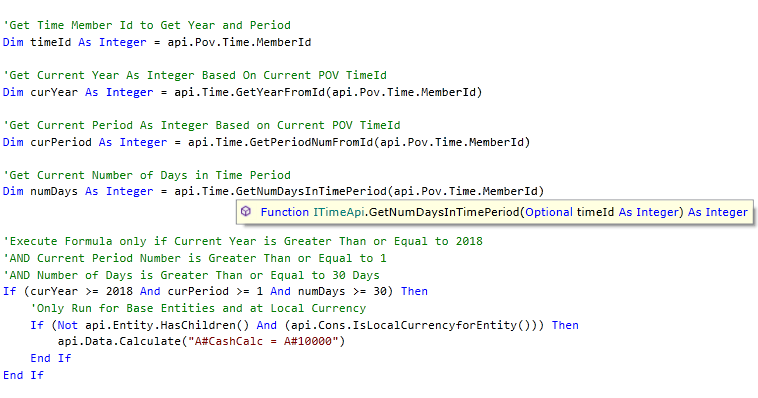
This function gets the number of days from the current POV Time Id. The number of days are already programmed depending on the month that is selected. It evaluates the number of days for a period and then introduces logic to execute the formula.
Api.Time.GetNumDaysInTimePeriod Usage
Example using api.Time.GetNumDaysInTimePeriod:

ErrorLog Result:

Example using api.Time.GetNumDaysInTimePeriod in a working formula:
Finance Functions APIs › Time Functions
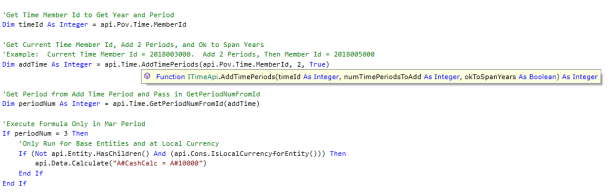
This function adds time periods to the current POV Time Id. It passes that data to different functions like GetPeriodNumFromId and then introduces logic to execute the formula.
Api.Time.AddTimePeriods Usage
Example using api.Time.AddTimePeriods:

ErrorLog Result:

Example using api.Time.AddTimePeriods in a working formula:
Finance Functions APIs › Time Functions
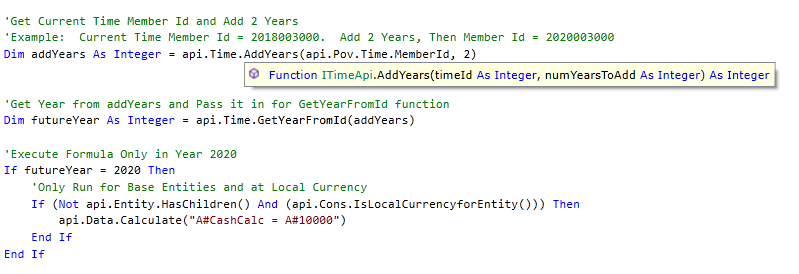
This function adds years to the current POV Time Id. It passes that data to different functions like GetYearFromId or GetPeriodNumFromId and then introduces logic to execute the formula.
Api.Time.AddYears Usage
Example using api.Time.AddYears:

ErrorLog Result:

Example using api.Time.AddYears in a working formula:
Finance Functions APIs
Calculation Member functions are commonly used through the Finance Api’s for accessing general information for any specified Member within a dimension. The Member functions allow a rule writer to identify members, get member information, and identify base and parent members to execute within Member Formulas and Business Rules.
The following are some of the most common Member functions for calculations:
Finance Functions APIs › Using Member Functions for Calculations
This function gets a specific dimension member. It is used for different functions like api.Data.FormulaVariables, GetBaseMembers function, custom member lists, and when working with Member Id within data buffers for processes like custom consolidation.
GetMember Usage
Example using GetMember:

ErrorLog Result:

Example using GetMember in a working formula:

Finance Functions APIs › Using Member Functions for Calculations
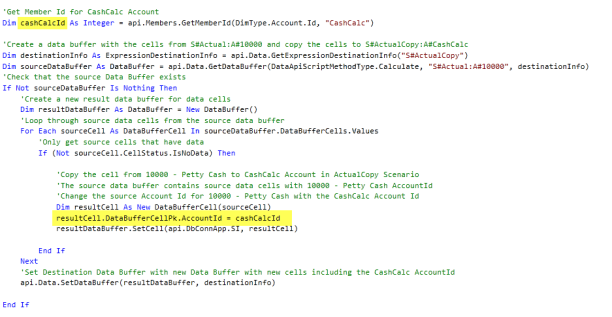
This function gets a specific dimension member Id. This technique is commonly used when working with source Data Buffers where the cells for a specific member Id need to be changed.
GetMemberID Usage
Example using GetMemberId:

ErrorLog Result:

Example using GetMemberId in a working formula:
Finance Functions APIs › Using Member Functions for Calculations
This function gets base members from a specific parent member. It is commonly used when working with Member Lists as part of FinanceFunctionType.MemberList, or to get base members to loop through specific dimensions for api.Data.GetDataCell.
GetBaseMembers Usage
Example using GetBaseMembers:

ErrorLog Result:
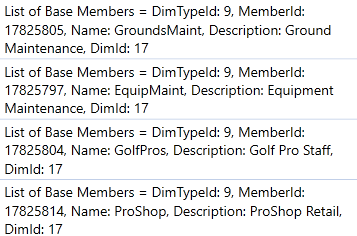
Example using GetBaseMembers in a working formula:
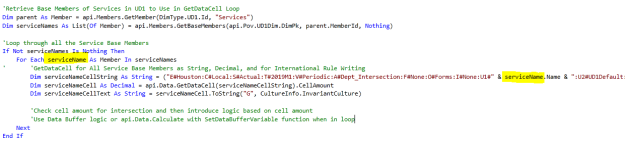
Finance Functions APIs
When writing a Member Formula or a Business Rule for a Stored Calculation, the new calculated numbers store data for that Cube, Entity, Parent, Cons, Scenario, and Time combination. For example, a Data Unit.
Return is never seen in a Member Formula for Formula Pass. Instead of being returned, many numbers are calculated and stored. When running a Calculation, Translation, or Consolidation, it calls the Member Formula once for an entire Data Unit. OneStream does not tell with which Account, Flow, or User Defined the numbers are being saved.
Initially, this may be confusing because Member Formulas are often written in an account’s Formula property, and administrators believe OneStream will only allow that specific Member Formula to write to that specific account. However, putting a Member Formula in an account’s Formula property is only for organizational purposes. When OneStream calls that formula, it is currently calculating a Data Unit and will initialize the API engine with only the Data Unit Dimensions.
Basic stored formulas are commonly used via the Api.Data.Calculate api function. Api.Data.Calculate is used in three different ways:
-
Api.Data.Calculate using Formula as String, Overload Functions, Eval Function, and IsDurableCalculatedData

-
Api.Data.Calculate using Formula as String and IsDurableCalculatedData

-
Api.Data.Calculate using Formula as String and Eval Function

Finance Functions APIs › Writing Stored Calculations
The most common function is Api.Data.Calculate, which sets the value of one or more dimension values (left side of formula) equal to another (right side). Final arguments (optional) are added to the formula for Overload Functions, Evals, and Durable Data.
The Api.Data.Calculate function must abide by the data explosion rules, which means that the left side and the right side of the formulas are balanced with the same dimension values on both sides. If a Member is specified for a Dimension anywhere on the right side of the equation, you must explicitly specify something for that Dimension on the left side of the equation.
This variation of the Api.Data.Calculate provides Member Filters (all optional) which can be used to filter the results before saving them to the target or destination. This function is the most powerful of the Api.Data.Calculate functions as it allows you to filter intersections. In addition, the Eval function adds the ability to filter down the number of individual data cells processed by data cell attributes such as CellAmount or CellStatus.
This function is commonly used to filter the source data buffer by base members of an Account related dimension. For example, A#Sales may be the source data buffer but the need for all products is not required for the calculation. Instead, A#Sales may need to be calculated by the base members of Clubs. By using Clubs.Base for A#Sales, the A#Sales data buffer has been reduced to only include Clubs.Base.
Api.Data.Calculate Usage
Example using Overload Function in a working formula:

Finance Functions APIs › Writing Stored Calculations
This variation of Api.Data.Calculate lets you define whether data is durable or not. Durable data is not cleared automatically when a Data Unit is re-calculated. It can only be cleared by calling api.Data.ClearCalculatedData with the clearDurableCalculatedData Boolean property set to True. As part of the standard Calculation sequence that runs during a Calculate or Consolidate, Durable data will be ignored from processing the clear, unless the clear is specifically defined within the Business Rule or Member Formula.
The most common reason to set the IsDurableCalculatedData to True is for seeding purposes. As part of the first seeding, the goal may be to seed from one Scenario to another just once and never seed it again. In this case, the seeded data should not be cleared at any point during the Calculate or Consolidate process. This technique is commonly used in Budget or Forecast processes where you are executing the seeding through a Dashboard. The formula may be applied as a FinanceFunctionType.CustomCalculate or a FinanceFunctionType.Calculate in a Business Rule.
IsCurableCalculatedData Usage
Example using IsDurableCalculatedData in a working formula:
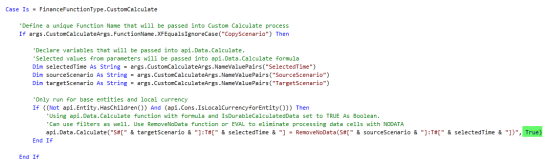
Finance Functions APIs › Writing Stored Calculations
Eval has an advanced capability that lets you get at the individual Data Cells in any Data Unit created while processing an api.Data.Calculate script. It allows Eval() to be wrapped around a subset of the formula’s math in order to evaluate the Data Buffer that was just created by running that math.
Prior to the 5.0 version and the introduction of the RemoveNoData function, Eval was commonly used to evaluate individual data cells in a source data buffer to process based on cell amount or cell status. Evaluating the number of No Data Cells for a Data Unit is an important factor for performance and calculation efficiencies.
Eval was initially an important function to evaluate individual data cells but it has been replaced with newer techniques such as GetDataBuffer and GetDataBufferUsingFormula, and looping through cells within the data buffer, as well as the Remove functions.
Eval Function Usage
Example using Eval in a working formula:
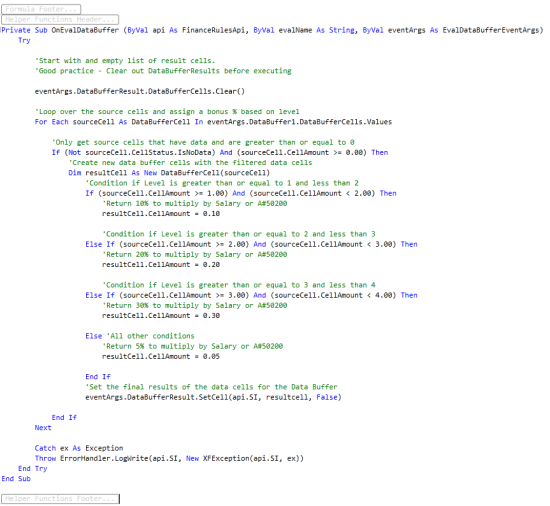
Finance Functions APIs › Writing Stored Calculations
The Api.Data.Calculate is the easiest and simplest way to write a formula as a Member Formula or a Business Rule. The construction of an Api.Data.Calculate formula must be balanced on each side of the formula with the appropriate dimensions to prevent data explosion. There are three different ways to use the Api.Data.Calculate function: Formula with Overload, Formula with IsDurableCalculatedData, and Formula with Eval.
From a performance perspective:
-
Never use the Api.Data.Calculate in a loop when using variables.
-
Use Remove functions whenever possible especially for sparse data models with lots of NODATA cells.
-
GetDataBuffer and GetDataBufferUsingFormula may have a better performance impact. Try replacing Api.Data.Calculate when doing math with GetDataBuffer math. In some cases, performance is better by using GetDataBuffer functions in place of Api.Data.Calculate.
Finance Functions APIs
Remove Functions were introduced in the 5.0 release. They replaced the reasons to use the Eval function. The basic need of the Eval function was to evaluate the individual data cells within a source data buffer to apply logic for processing. In many cases, OneStream did not want to process data cells in source data buffers that had a Cell Status of NODATA or Cell Amount = 0. With the 5.0 release, functions do that without the need for writing additional logic.
The RemoveNoData and RemoveZeros functions provide the ability to not process individual data cells within a source data buffer. They wrap the Remove() around a subset of the formula to prevent processing of individual data cells from within a source data buffer. Remove functions are used in Member Formulas or Business Rules.
Remove functions are used for performance reasons. Data Units may contain a great amount of NODATA data cells or 0 value data cells. These cells could be needlessly processed during calculation execution if these functions are not used in a Api.Data.Calculate formula.
Finance Functions APIs › Remove Functions
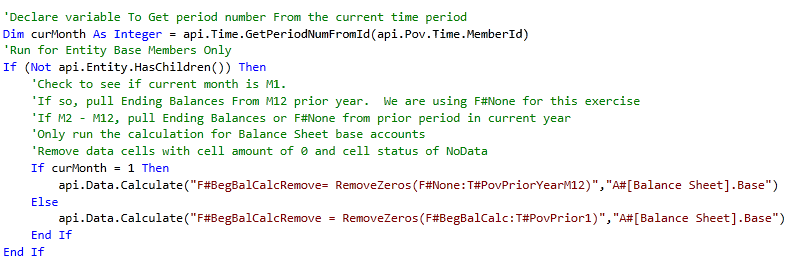
RemoveZeros is used to remove data cells with a cell amount of 0 from the source data buffer. In addition, this function removes data cells with a cell status of NODATA from the source data buffer. It is important to evaluate if the 0s are needed for the Api.Data.Calculate formula during calculation execution.
Finance Functions APIs › Remove Functions
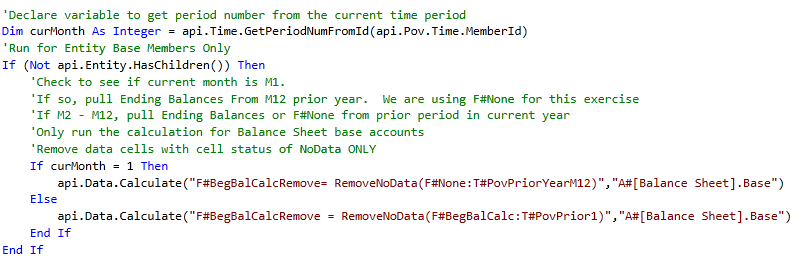
RemoveNoData removes data cells with a cell status of NODATA ONLY from the source data buffer. Unlike the RemoveZeros function, this function does not remove data cells with a cell amount of 0.
NODATA cells and 0 cells can be found using the following methods:
-
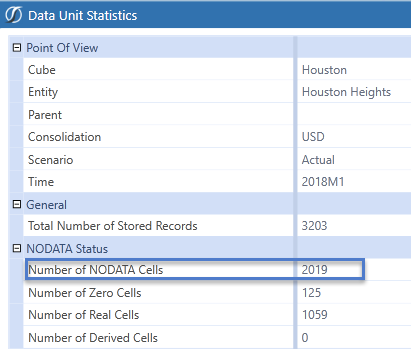
Review the Data Unit Statistics when you right-click on a cell in Cube View.
-
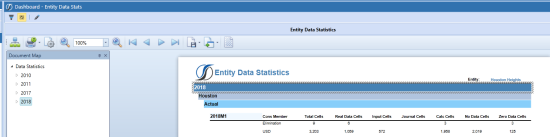
Review the Application Analysis Dashboard and check the Entity Data Statistics Report.
This is based on the Data Unit and Entity Data Statistics. There may be many Member Formulas and Business Rules that are driving data creation. Therefore, all formulas would need to be evaluated to determine whether these Remove functions are used. The higher the percentage ratio of NODATA cells to Total Number of Stored Records, the more important it is to use these Remove functions.
Example = 3,203 Stored Records with 2,019 of those Stored Records as NODATA cells. Nearly 65% of the Data Unit has NODATA cells to process which causes extra calculation time.
The Review functions can be found in Key Functions under Snippets.
Finance Functions APIs › Remove Functions
Finance Functions APIs
A Member Script may not be defined for the Api.Data.Calculate function because multiple Data Cells, which seem completely unrelated to each other, are being processed and none of the Dimension Members are constant. For those situations, use the GetDataBuffer and SetDataBuffer functions.
GetDataBuffer and SetDataBuffer are more fundamental than using an Eval function. They allow you to read numbers using a Member Script, process or modify each cell in the result, and then save the changes. Common GetDataBuffer functions include:
-
GetDataBuffer
-
GetDataBufferForCustomShareCalculation
-
GetDataBufferForCustomElimCalculation
-
GetDataBufferUsingFormula
-
SetDataBuffer
When using api.Data.Calculate functions, it is important to know which Member a formula is attached to. For example, if the formula starts with Api.Data.Calculate(“A#Sales1 = …”), put the formula in the Sales1 account Member’s Formula setting.
However, when using GetDataBuffer functions, the formula may not be writing to a specific Member. Every Data Cell saved is possibly written to a different dimension member. In this case, the logic can be developed in a Business Rule and could be created as a Sub routine to execute throughout Finance Business Rules.
Finance Functions APIs › GetDataBuffer Functions
GetDataBuffer retrieves a Data Unit’s values during a particular consolidation, calculation, or translation. When using GetDataBuffer, this is equivalent to the source data buffer or to the right side of the equation for Api.Data.Calculate. Depending on which GetDataBuffer function you are using, three or four properties can be used.
For the basic GetDataBuffer, three properties are used:
-
ScriptMethodType As DataApiScriptMethodType
-
SourceDataBufferScript As String
-
ExpressionDestinationInfo As ExpressionDestinationInfo
The scriptMethodType typically uses the Calculate option for DataApiScriptMethodType.
The sourceDataBufferScript is equivalent to the right side of the equation for the Api.Data.Calculate.
The expressionDestinationInfo is equivalent to the left side of the equation for the Api.Data.Calculate. Frequently, this gets manipulated using the Dimension Id, passing in the Dimension Member Id for the data buffer primary key.
The GetDataBuffer can be used in various ways, and is not limited to the following:
-
Use Data Buffers to perform Data Buffer math. In some cases, this can perform better than an Api.Data.Calculate.
-
Use GetDataBuffer in place of Api.Data.Calculate to use in Sub routines which execute code and instructions, are stored in memory, and are used within Functions throughout Finance Business Rules.
Finance Functions APIs › GetDataBuffer Functions
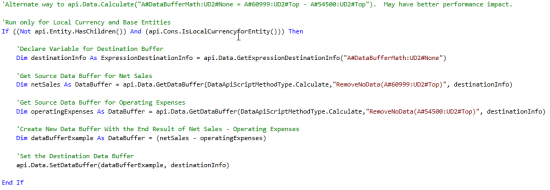
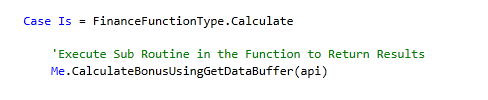
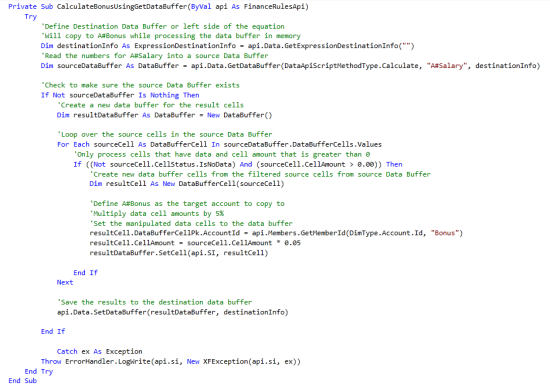
Finance Functions APIs › GetDataBuffer Functions
Unbalanced Math Functions
Unbalanced math functions are required when performing math with two Data Buffers, where the second Data Buffer needs to specify additional dimensionality. The term Unbalanced is used because the script for the second Data Buffer can represent a different set of Dimensions from the other Data Buffer in the api.Data.Calculate text. These functions prevent data explosion. The four Unbalanced Math functions are:
-
AddUnbalanced
-
Example: api.Data.Calculate("A#TargetAccount = AddUnbalanced(A#OperatingSales, A#DriverAccount:U2#Global, U2#Global)")
-
-
SubtractUnbalanced
-
Example: api.Data.Calculate("A#TargetAccount = SubtractUnbalanced(A#OperatingSales, A#DriverAccount:U2#Global, U2#Global)")
-
-
MultiplyUnbalanced
-
Example: api.Data.Calculate("A#TargetAccount =MultiplyUnbalanced (A#OperatingSales, A#DriverAccount:U2#Global, U2#Global)")
-
-
DivideUnbalanced
-
Example: api.Data.Calculate("A#TargetAccount =DivideUnbalanced (A#OperatingSales, A#DriverAccount:U2#Global, U2#Global)")
-
When using Unbalanced Math functions, the first two parameters represent the first and second Data Buffers on which to perform the function. The third parameter represents the Members to use from the second Data Buffer when performing math with every intersection in the first Data Buffer. The math favors the intersections in the first Data Buffer without creating additional intersections.
It is important that the dimensionality of the Target (left side of the equation) matches the dimensionality of the first data buffer on the right side of the equation (argument 1).
Often, these functions would be used when one source data buffer is doing math with a specific data cell intersection. This could be a rate, driver, or some data cell input.
Unbalanced Math Functions Usage
Example using MultiplyUnbalanced in a working formula:

Finance Functions APIs › GetDataBuffer Functions
The GetDataBufferUsingFormula function uses an entire math expression to calculate a final data buffer. GetDataBufferUsingFormula can perform the same data buffer math as Api.Data.Calculate, but the result is assigned to a variable, where Api.Data.Calculate actually saves the calculated data.
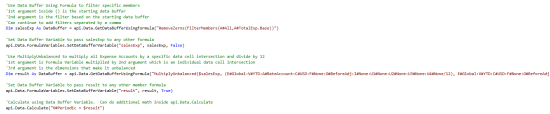
GetDataBufferUsingFormula calculates multiple source data buffers first. Then, the result of the math is stored in memory using a Formula Variable. Finally, the Formula Variable is used anywhere within the Member Formula or Business Rule. This function is commonly used during rule writing for Planning Business Rules using MultiplyUnbalanced, DivideUnbalanced, Trailing functions such as trailing 12 months, and Allocations.
When using GetDataBufferUsingFormula, FilterMembers and RemoveMembers are used in conjunction to shrink down dimensional members in the source Data Buffer.
FilterMembers
FilterMembers change a data buffer and only include numbers for the specified Dimensions. The first parameter is the starting data buffer. This can be a variable name or an entire math equation in parentheses. There can be as many parameters as needed to specify Member Filters and different Member Filters can be used for multiple Dimension types. The resulting filtered data buffer will only contain numbers that match the Members in the filters.
GetDataBufferUsingFormula Usage
Example using GetDataBufferUsingFormula in a working formula:
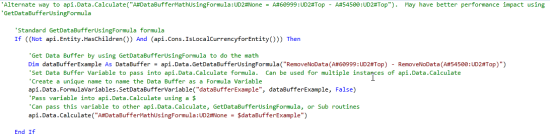
Example using GetDataBufferUsingFormula with FilterMembers and MultipleUnbalanced in a working formula: