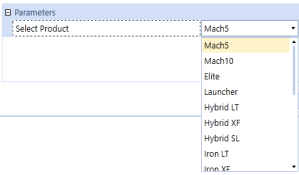
Parameters prompt users to filter or customize data at runtime, helping streamline objects such as forms, dashboards, and cube view reports to best suit different user needs. Administrators typically define parameters primarily in maintenance units, and then assign parameters to the appropriate object. See:
About Parameters
Depending on the type, parameters prompt you to specify data by entering text or selecting items from a drop-down list or dialog box. For example, a Delimited List parameter could prompt you to select from 1 of 3 budget versions to use in a Headcount by Cost Center report, as shown: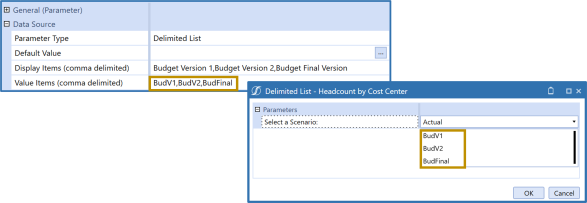
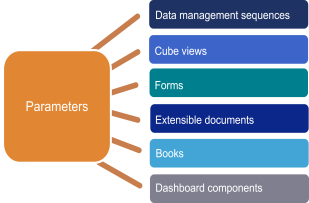
As shown below, you can use parameters with a variety of objects, such as:
-
Data management sequences
-
Cube views
-
Forms
-
Extensible documents
-
Books
-
Dashboard components
For example, use parameters as placeholders or with substitution variables and retrieve functions to enhance extensible documents with selections for time period, entity, data cell values, and more. See Ways to Use Parameters.
Filter Data and Reduce Maintenance With Parameters
Parameters are created in dashboard maintenance units. The following parameter types are available, each with specific uses.
To reference an existing parameter, when formatting a cube view header or cell for example, enclose the parameter name in pipes and exclamation points. For example, |!ParameterName!|.
Each parameter type has two sections of properties, General and Data Source parameter properties. Properties identify a parameter, determine a parameter's behavior, and control how the parameter is used.
General properties are standard across all parameter types. Data Source properties vary by parameter type, but the first property for all parameter types is the Parameter Type property, where you select the type of parameter from a list.
Literal Value Parameters
Literal value parameters are the only parameter type that does not prompt for any selections during creation.
Use literal value parameters to standardize formatting for cube view columns and rows and dashboard components. This helps reduce reporting maintenance. .
To create a literal value parameter, first create a new parameter, then specify the Literal Value parameter settings.
Input Value Parameters
Use Input Value parameters to flexibly enter or change a value used in a cube view or other object. You can enter or modify a value to use in dashboard components and cube view rows and columns.
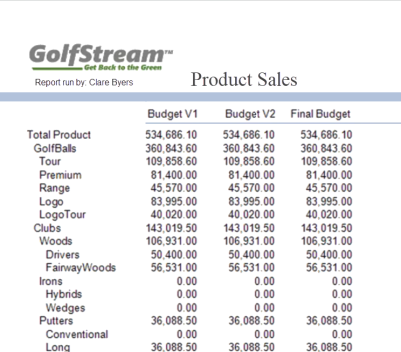
The Input Value parameter type helps you standardize and more easily maintain report and dashboard formats. For example, you can create an Input Value parameter that, when run in a cube view, prompts a for the name to display as Report Run By in a product sales report. 
To create an Input Value parameter, first Create a Parameter, then specify the Input Value parameter settings.
Delimited List Parameters
Use Delimited List parameters to create a distinct list of specified values, including an easily recognizable name. For example, you can create a list containing the months of the year to use as value items. Use the display items field for the delimited list parameter to list each month value separated by a comma, then associate each with a value item to create the list.
Delimited List parameters let you pick a value from a drop-down list instead of typing a value into a cell. Parameters can be assigned as a list source to a cube view row or column. These parameters are supported in Excel, web browsers, and cube view-driven reports.
You can also specify a parameter name that can be a cube view row or column. Edit cells using a drop-down list containing the parameter’s list of items. A number is stored in the data cell as specified in the parameter's definition. If using a Delimited List parameter on a numeric cell, ensure each value in the parameter’s name-value pairs is a number.
Select from a list of values, specified as display or value items, such as months or financial quarters. For example, a Delimited List parameter could prompt a user to select from one of three budget versions for a Headcount by Cost Center report.

These types of parameters also help you prompt for columns when sharing columns in a cube view, so you can specify column names at runtime. For example, you could specify columns for products or years in an income statement.
To create a Delimited List parameter, first Create a Parameter, then specify the Delimited List parameter properties. See a sample.
Bound List Parameters
A bound list is group of members or other objects that were created using a predefined method query or by entering an SQL expression to retrieve members. Use Default Value to enter an input value.
For example, to list all entities in a dimension, use this method query with a command type of member:
{Dimension type}{Dimension name}{Member Filter}{where clause}{Entity}{CorpEntities}{E#Root.TreeDescendants}{}
The difference between the two query types is that a method query is an SQL query helper that you can use to quickly perform queries.
SQL queries are more customizable and often used in dashboard design to prompt for information such as the workflow profile name. See Determine the Query Method.
To create a Bound List parameter, first Create a Parameter, then specify the Bound List parameter settings.
Member List Parameters
A Member List parameter is similar to a Delimited List parameter, but you must specify more properties. Also, a Member List parameter does not have the option to display a value item or display item.
Users select a member, such as an account or entity dimension member. For example, you could prompt users to select a base Scenario member when they run a cube view to display budget actuals.
Members that display in the member list are based on the member filters you specify for a dimension.
To create a Member List parameter, first Create a Parameter, then specify the Member List parameter settings.
Member Dialog Parameters
Similar to Member List parameter, the Member Dialog parameter lets you associate a member with the parameter through a dialog box with search capabilities. This is more appropriate for a dimension such as accounts or entities where you can use the hierarchy to select a base or parent member.
To create a Member Dialog parameter, first Create a Parameter, then specify the Member Dialog parameter settings.
Filter Data and Reduce Maintenance With Parameters
As configurable prompts, parameters enhance reporting and analysis flexibility because they let you dynamically filter the data to retrieve. You can also use some types of parameters with form templates to streamline data collection. Some parameters also store values that you can share across objects, helping make applications more dynamic and reduce some maintenance tasks. For example:
-
Use parameters with substitution variables and retrieve functions to hold values so you can insert time periods, entities, text comments, and data cells in extensible documents.
-
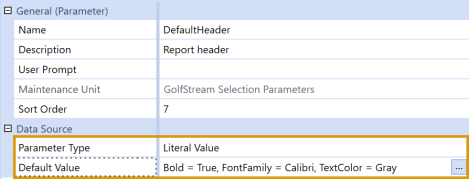
Use Literal Value parameters to define and apply standard formatting to cube view rows and columns and to dashboard components, reducing repetitive, error-prone tasks and ensuring a consistent look and feel in your analytics. You could create a Default Header parameter that captures the header format to use in reports as shown below and then assign the parameter to the appropriate cube views.
For information about some of the tasks you can perform with parameters, see Ways to Use Parameters.
Filter Data and Reduce Maintenance With Parameters
You can use parameters extensively across OneStream objects. This topic identifies some of the advantages of using parameters with some objects such as the following with:
Cube Views
Assign parameters to a cube view to:
-
Specify and apply standard formatting to cube views and dashboards for a consistent look and feel in your reports.
-
Identify the details users can access when they navigate linked cube views and dashboards to access more data. See Linked Cube Views.
-
Let users refine the data to supply or retrieve in reports by prompting them to select entities, workflow profiles, views, scenarios, and more. To limit a query, refer to the parameter in the point of view, rows, or columns. This filters data in reports based on parameter selections.
-
Specify the point of view to display more focused data.
-
Nest parameters to use a series of parameter prompts to refine the data to use on dashboards and in reports. See Nest Parameters.
Data Adapters and Dashboard Components
Use parameters with data adapters to:
-
Prompt users to select the data to retrieve and display on dashboards, so they can focus their analysis using custom intersections of some of the cube view data that populates the dashboard. For example, assign parameters to prompt for entity and year selections to a data adapter so users can visualize data by entity and year while accessing the rest of the cube view data.
-
Enable dashboard actions such as custom calculations or launching another dashboard.
-
Identify static values using Literal Value parameters, for dashboard content and design.
See Parameter Components in Dashboards.
Extensible Documents
Use parameters as placeholders and with substitution variables and retrieve functions to enhance extensible documents, such as Word and PowerPoint files, with dynamic selections for time period, entity, data cell value, text comments, and more. For example, insert the following parameters to prompt users to specify the years and quarter to use in a report:
-
|!CurrentQtr!|
-
|!ReportingYear!|
-
|!ReportingYearPrior!|
You can use parameters in Microsoft text, Excel, Word, and PowerPoint files. See Present Data With Extensible Documents.
Books
Use books to combine a variety of reports and files in one object for custom reporting. You can automatically generate input parameters based on book content or manually specify the required parameters. You can also use parameters in loops- sequences of variable-based instructions, to further customize the data to display. For example, a book can loop to display all base entities in a hierarchy, providing the same cube view report for each entity. Or, you could assign a parameter called ParamSalesRegions to include all sales regions in book content.
If the source objects used in a book have assigned parameters, use Change parameters to override them instead of modifying the underlying cube view or report. For example, configure a Change parameter to use the workflow time in a book instead of prompting users to specify a Time dimension member.
NOTE: Before creating books and using Change parameters, ensure that you understand the source objects, such as cube views, that generate the content to use.
Filter Data and Reduce Maintenance With Parameters
This topic describes who should create parameters and the syntax to use when you assign parameters to application objects.
Definition and Assignment
Because they are more familiar with OneStream applications, objects and processes, a OneStream Administrator or an application designer should define parameters after identifying:
-
The information that a parameter must gather from users at runtime.
-
If a sequence of parameters is needed to gather the required data. Specify a staggered sort order to display parameters in the right order to collect increasingly granular levels of detail.
See Best Practices.
Syntax
Enclose parameter names in pipes and exclamation points when you assign parameters to objects, regardless of parameter type. For example, |!ParamView!| prompts users to select year to date or periodic data when they run a cube view for reporting.
Use double exclamation points (for example, |!!ParamEntity!!|) when assigning Delimited List parameters to present users with the parameter's more intuitive and helpful display item value.
Follow these best practices when assigning Delimited List parameters:
-
Assignment to cube view rows and columns - Use single exclamation points to display the member name. If you use double exclamation points, you may receive an error at runtime as the parameter tries to retrieve the Display Item value.
-
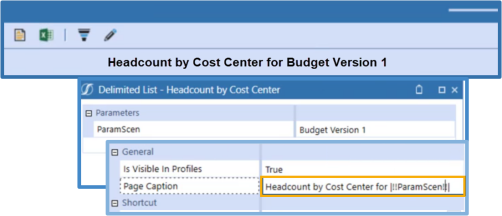
Assignment to page captions - Use single exclamation points to display the Value Items. Use double exclamation points to show the Display Item. For example, instead of displaying BudV1 - the Value Item, specify |!!Budget Version 1!!| to display Budget Version 1 on reports as shown:
Filter Data and Reduce Maintenance With Parameters
This topic provides tips to help you design and maintain parameters. See:
Design
Since parameters can be used with different objects such as similar types of reports, reduce the associated maintenance tasks by designing parameters with:
-
Reuse in mind, making parameters applicable to different objects. If you modify a parameter to address changing reporting needs, keep in mind that your changes apply to all objects to which the parameter is assigned.
-
A staggered sort order where at least 20 sort numbers are unassigned to support new parameters possibly needed for future report and dashboard redesign.
For example, two parameters with respective sort orders of five and six display consecutively. However, to display a new parameter in between them, you must change the parameter with sort order of 6 to 7 and then assign sort order of 6 to the new parameter. If you have hundreds or parameters, changing the existing sort order to support new parameters is tedious and error prone. In this example, assign a sort order of 5 to the first parameter and 25 to the second parameter to easily add new parameters in between them.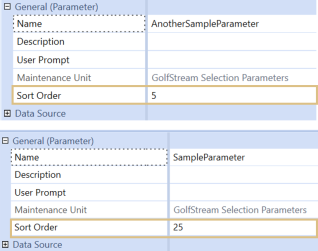
Naming
To quickly identify parameters, prefix parameter names with "Param". For example, ParamProductSegment, ParamCostCenter and ParamColumnColor.
Do not use special characters or dashes (-) in parameter names. Also, specify intuitive names for parameters. If you rename a parameter, you must re-assign it to all, potentially hundreds, of its associated objects.
Parameter names should be unique, even across workspaces.
Filter Data and Reduce Maintenance With Parameters
This topic orients you with the properties you specify to create parameters and how to look up objects and values to specify as the default value of a parameter.
Property Types
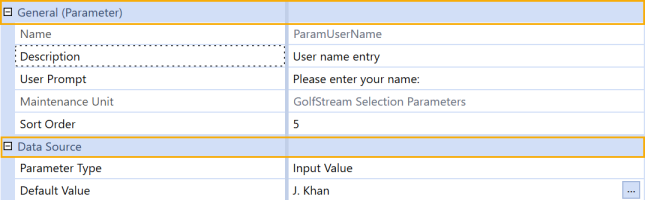
You specify two types of properties to create a parameter, as shown below:
-
General properties, such as user prompt and sort order, that are common to all parameter types.
-
Data source properties that are parameter type-specific. These properties define the value or objects to apply with the parameter or the prompt options that users can select at runtime.
See Create a Parameter.
Filter Data and Reduce Maintenance With Parameters
Parameters prompt users to filter or customize data at runtime, helping tailor objects such as forms, dashboards, and cube views to best suit different user needs. Administrators define parameters in dashboard maintenance units, then assign them to the appropriate objects.
TIP: To further refine data selections, refer one parameter to another. See Nested Parameters.
-
Review the Requirements and Best Practices.
-
Click Application > Presentation > Dashboards
TIP: You can also define parameters by clicking System > Administration > Dashboards.
-
Click the dashboard maintenance unit in which to create a parameter, then Parameters. After you save a parameter, you cannot put it in another dashboard maintenance unit.
-
Click
 Create Parameter in the dashboard toolbar.
 -
In Name and Description, enter a name and description that indicates the information the parameter prompts users to specify, such as ParamBudget Scenario. Do not use special characters, dashes (-) or underscores (_) in names. Names should be unique, even across workspaces.
See Naming in Parameter Best Practices for tips on naming and organizing parameters.
-
In User Prompt, enter the message that prompts users to specify information. For example, Select a Product member or Enter your name.
Skip this step for literal value parameters since they do not prompt for selections.
-
In Sort Order, enter the sequence in which to display the parameter. Parameters are displayed by alphabetical order by sort order and name.
-
In the list of parameters for the dashboard maintenance unit. For example, to list the parameter sixth, enter six.
-
For use with other parameters. For example, to display parameterB after parameterA, ensure that the sort order value for parameterB is greater than that of parameterA. See Best Practices.
-
-
From Parameter Type, select the kind of parameter to define which determines the information or objects users are prompted to specify. See Parameter Types.
-
Literal Value: Instead of prompting users for a selection, use a predefined value or object such as a color or number format.
-
Input Value: Users enter or modify a value to customize cube view results that generate reports. For example, prompt users to enter their name when they run a cube view to generate a report.
-
Delimited List: Users select one value or item from a list, such as one of two budget scenarios.
-
Bound List: Users select a member from a list of members generated with a method or a SQL query.
-
Member List: Users select a member from a drop-down list.
-
Member Dialog: Users select a member by navigating, searching, and filtering the member hierarchy displayed in a dialog box.
-
-
Define the settings for the parameter type:
-
Click Save.
-
Add the parameter to the appropriate object, such as a cube view. See Assign a Parameter.
Filter Data and Reduce Maintenance With Parameters › Create a Parameter
To finish defining a Literal Value parameter:
-
In Default Value, specify the value or object to apply with the parameter. Users cannot change this at run time. Enter a value (color or currency, for example) or an object name, or click Edit to look it up.
-
Click Save.
IMPORTANT: When you assign the parameter, enclose the name in pipes and exclamation points. For example, |!ParamColumnColor!|.
Filter Data and Reduce Maintenance With Parameters › Create a Parameter
To finish defining an Input Value parameter:
-
(Optional) Although users can override it at runtime, use Default Value to specify a value or object to initially display the first time the parameter runs. Enter the object name or value, or click Edit to look it up.
-
Click Save.
IMPORTANT: When you assign the parameter, enclose the name in pipes and exclamation points. For example, |!DefaultHeader!|.
Filter Data and Reduce Maintenance With Parameters › Create a Parameter
To finish defining a Delimited List parameter:
-
In Default Value, specify a value or object to initially display the first time the parameter runs. Enter the member name or click Edit to look it up.
-
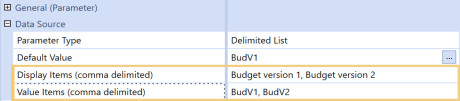
In Display Items (comma-delimited), define a custom, comma-delimited list to display several options in the application from which to select, for example Budget Version 1, Budget Version 2. Separate names with commas.
-
In Value Items (comma-delimited), enter the values or objects, such as member names, that correspond to each Display Item option in the application. Enter options in a comma-delimited list using their names in the application. Separate the values with commas.
For example, if the Scenario dimension member for Budget Version 1 is BudV1, enter BudV1. Similarly, enter BudV2 as the member used if Budget Version 2 is selected. Separate names with commas as shown:
The syntax you use when you assign the parameter to an object depends on:
-
The object type and component, such as a cube view's page caption or row.
-
If you want to present the Value Item or Display Item to users at run time.
See Syntax.
NOTE: If a delimited list parameter is used in a cube view page caption, surround it in two exclamation points to reference the display items, not the value. For example, |!!ParameterName!!|.
-
Click Save to save your property edits.
Filter Data and Reduce Maintenance With Parameters › Create a Parameter
You can define two types of Bound List parameters.
-
An SQL-based query to leverage data in the OneStream application or framework database or in an external data source.
-
A method-based query to use object-specific variables to refine and customize the member data to return.
To finish defining a method-based parameter:
-
In Default Value, enter the actual value used by default in the parameter, if no other value is specified. The default value must be part of the parameter’s definition.
You can either type the default value if known, use object lookup to create the default value, or use a cube view to select the appropriate formatting and copy the result to the Default Value field.
The Default Value property is the member you would set before defining a value using the Data Source properties specific to the selected parameter type.
-
Use Result Format String Type to determine if the default value or a custom value is used.
-
Default: Use the formatting defined in the Default Value property.
-
Custom: Use a format string that you enter in Result Custom Format String as the display text for the parameter.
Selecting Custom enables the Result Custom Format String property, where you can design the custom string.
-
-
In Result Custom Format String, optionally enter a string to use as the display text. Use String.Format syntax in .NET. For example, if a value is Blue and the format string is The color is {0}., the display text is The color is blue.
-
In Command Type choose one of the following:
-
Method to use a specified method type and query to define the command to be used in the parameter.
-
SQL Query to determine the database to use and define the SQL query.
Both selections enable additional properties to further define the command.
For a Method Command Type: Use these properties to define the database location if using a Method command type.
- Method Type: Select the object-specific variables to define how members are evaluated, so the most useful members are returned. See Data Adapters for more information on using the method type in a parameter definition.
-
Method Query: Customize variables to define which members to return and display in prompts. You can either type the default value if known, or use object lookup to create the default value. Use this syntax:
{Dimension type}{Dimension name}{Member Filter}{where clause}
For a SQL Command Type: Use these properties to define the database location if using a SQL command type.
-
Database Location: Determines the location of the database that includes the SQL command type. Select one of the following:
-
Application: Use the current OneStream Application database containing stage and financial cube data.
-
Framework Use the connected OneStream Framework database containing security and log data.
-
External Indicates that a database outside of OneStream is to be used.
If selecting External for the database, use the enabled External Database Connection property to select from the list of external databases. External database connections are defined in OneStream using the Server Configuration Tool. Select the external database connection you want to use from the list.
See Configuring Application Servers in the Installation Guide for information on configured application servers.
-
-
SQL Query: This is the SQL statement to run for the parameter. Enter a query that evaluates objects (such as members) to return a particular set. For example:
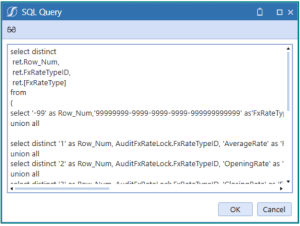
NOTE: If you do not know the method query syntax, leave this field blank and click
 . This identifies the syntax location, runs the parameter, and provides a sample result set.
-
-
In Results Table Name, enter the name of the table generated when the data adapter runs. The default name is table.
-
In Display Member, enter one of the following:
-
Name to display the member by name.
-
Description to display the member's description.
-
Name and Description to display both the member name and the member description.
-
-
In Value Member, enter the name of the members, as used in the application, to correspond to each member displayed.
-
Click Save to save your property edits.
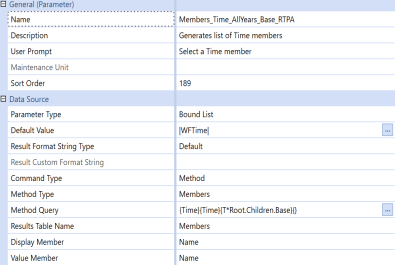
Sample Method-Based Parameter
The following image shows the definition of a parameter that retrieves Time members for an Application Analysis report.
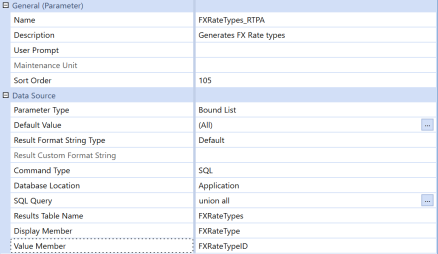
Sample SQL-Based Parameter
The following image shows the definition of a parameter that generates a list of FX Rate Types for an FX Rates Audit report.
Filter Data and Reduce Maintenance With Parameters › Create a Parameter
To finish defining a Member List parameter:
-
(Optional) In Default Value, specify a member to display at the top of the list when the parameter runs and prompts users to select a member. Enter the member name or click Edit to look it up.
-
Right-click in the Default Value dialog box, select Paste and then click OK.
-
Use Display Member to define how to display the returned members.
-
Type Name to display the member by name.
-
Type Description to display the member's description.
-
Type Name and Description to use both.
-
-
In Cube, either type the default value if known, or click Edit to use object lookup to select the cube containing the required dimensions.
-
From Dimension Type, select the dimension category (such as Time or Account) that contains the appropriate dimension.
-
In Dimension, enter the name of the dimension to use or click Edit to select the dimension in the hierarchy.
-
In Member Filter, either type the member filter if known or click Edit to use the Member Filter Builder to specify the members to list.
-
Click Save to save your changes.
Filter Data and Reduce Maintenance With Parameters › Create a Parameter
To finish defining a Member Dialog parameter:
-
(Optional) In Default Value, specify a dimension in the dimensional hierarchy to display when the parameter first runs. Enter the dimension name or click Edit to look up the dimension.
-
In Cube, click Edit to select the cube that uses the required dimension. To quickly find a cube, type the name in Filter.
-
From Dimension Type, select the dimension category such as Consolidation or Scenario that contains the appropriate dimension.
-
In Dimension, enter the name of the dimension to use or click Edit to select the dimension from the hierarchy.
-
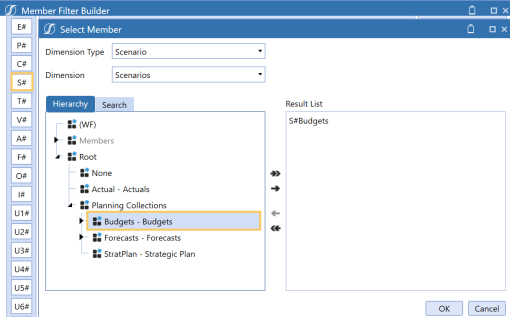
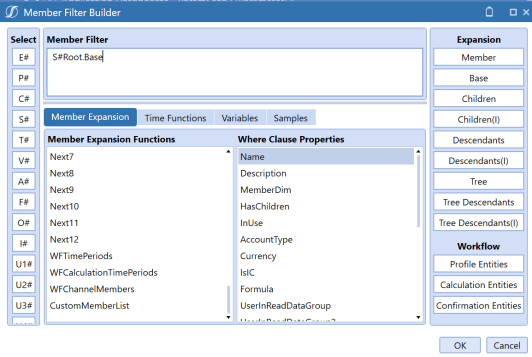
In Member Filter, specify the member that determines the hierarchy to display in parameter prompts. Enter a member name or click Edit to use the Member Filter Builder to refine the members to display. For example:
-
To display only Budget members in a Scenario dimension with multiple member groups such as Actual and Forecast, click S# and select Budgets as shown:
-
To display the entire hierarchy, select Root and Base.
NOTE: Dashboard-based parameters are similar to those used in forms. If a form references a parameter that cannot be found in the form template, a dashboard parameter of the same name is used.
-
-
Select members and use the arrows to add them to Results.
-
Click OK twice.
-
Click Save.
IMPORTANT: When you assign the parameter, enclose the name in pipes and exclamation points. For example, |!BudgetScenario!|.
Filter Data and Reduce Maintenance With Parameters › Create a Parameter
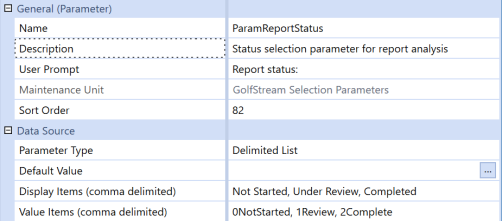
In this example, a Delimited List parameter is created and assigned to a sample GolfStream cube view so users can indicate if reports are not started, under review, or completed for each entity.
-
Click Application > Presentation > Dashboard and then select the dashboard maintenance unit where you want to store the parameter.
-
Click Create New Parameter.
-
Define the parameter by specifying the settings shown below. Enter an intuitive name to reflect the parameter's purpose of prompting users to select from a list of report status settings.
-
In Display Items, enter the status options that users can select when they run the cube view.
-
In Value Items, enter the corresponding status member names defined in the application. For example, 0NotStarted is the Value Item for the Display Name Not Started.
-
Click Save.
-
Click Application > Presentation > Cube Views and select the cube view to use with the parameter.
-
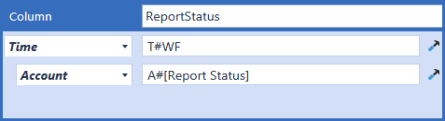
Click Rows and Columns to see that column members display time based on workflow and a non-financial account called Report Status. The row members identify all base entities for Clubs.
-
Click a row header and then Data.
-
In Cell Type, select Combo Box.
-
In List Parameter, enter ParamReportStatus and then save the cube view.
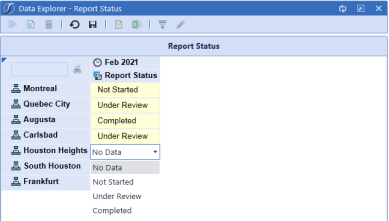
When users run the cube view, they can specify a report status for each entity, as shown:
Filter Data and Reduce Maintenance With Parameters
Filter Data and Reduce Maintenance With Parameters › Manage Parameters
After defining a parameter, assign it to the object where it should be used to filter runtime data or apply a stored value.
-
Click Application and then the appropriate object.
-
Edit the object to assign the parameter. Click Object Lookup to find the parameter, and enclose the parameter name in pipes and exclamation points. For example, |!ParamDate!|. See Syntax.
-
Click Save.
See these sample use cases:
Assign to a Report Subheader
Perform these task to assign an Input Value parameter to prompt users to enter their name in a report header:
-
Click Application > Presentation > Cube Views.
-
Click Cube View Group, the appropriate cube view, Designer, and then Report Header.
-
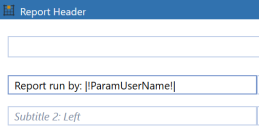
In Subtitle enter Report run by:.
-
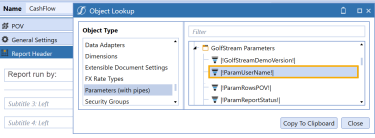
Click Object Lookup, and then Parameters (with pipes).
-
Select the parameter to assign, and then click Copy to Clipboard.
-
Paste the parameter after Report run by:, as shown:
-
Click Save and then Open Data Explorer to run the cube view.
-
Enter your name and click Show Report. The report generates, displaying your name as shown:
Assign to a Cube View Column Header
In this example, a Delimited List parameter is assigned to a sample GolfStream cube view so users can indicate if reports are not started, under review, or completed for each entity.
-
Click Application > Presentation > Cube Views.
-
Click the appropriate cube view.
-
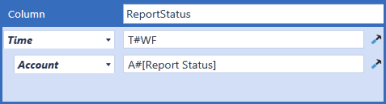
Click Rows and Columns to see that column members display time based on workflow and a non-financial account called Report Status. The row members identify all base entities for Clubs.
-
Click a row header, and then Data.
-
In Cell Type, select Combo Box.
-
In List Parameter, enter ParamReportStatus and save the cube view.
When users run the cube view, they can specify a report status for each entity, as shown:
Filter Data and Reduce Maintenance With Parameters › Manage Parameters
TIP: Before editing a parameter, identify where it is used to understand the affects of modifying it. Select the parameter and click  Show Objects That Reference The Selected Item.
-
Click Application > Presentation > Dashboards.
-
Click the dashboard maintenance unit that uses the parameter, and then Parameters.
-
Click the parameter to modify settings described in Create a Parameter.
-
Click Save.
Filter Data and Reduce Maintenance With Parameters › Manage Parameters
Copy a parameter to quickly create a new parameter that must function similarly.
-
Click Application > Presentation > Dashboards.
-
Click Dashboard Maintenance Unit, the dashboard maintenance unit in which the parameter is used, and then Parameters.
-
Click the parameter upon which to base a new parameter, then click Copy.
-
Click Paste and then Rename to specify a name for the new parameter.
-
Modify the new parameter as needed and assign it to an appropriate object. See:
Filter Data and Reduce Maintenance With Parameters › Manage Parameters
You can delete a parameter after removing it from its assigned objects.
-
Click Application > Presentation > Dashboards.
-
Click Dashboard Maintenance Unit, then the dashboard maintenance unit in which the parameter is used.
-
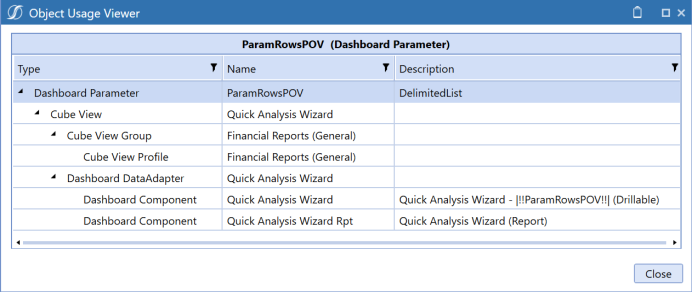
Click the parameter, then Show Objects That Reference The Selected Item. This identifies the objects from which you must remove the parameter. For example:
-
Click Application to find and edit the objects that use the parameter. For example, to remove a parameter from report header in a cube view:
-
Click Cube View Groups, the cube view, and then Designer.
-
Click Report Header, delete the parameter from the subtitle, and then click Save.
-
-
To delete the parameter:
-
Repeat steps 2 - 4 to ensure you remove the parameter from all objects.
-
Click the parameter and then
 Delete.
-
Filter Data and Reduce Maintenance With Parameters › Manage Parameters
CAUTION: If you rename a parameter, you must re-assign it to all objects because the new name is not automatically applied. See Identify parameter assignments. Do not use special characters and dashes (-) in names.
-
Click Application > Presentation > Dashboards.
-
Click the dashboard maintenance unit that uses the parameter, and then Parameters.
-
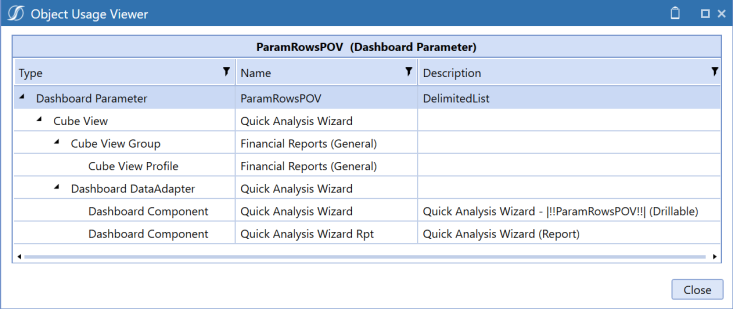
Click the parameter, then Show Objects That Reference The Selected Item to identify the objects using the parameter. You must assign the renamed parameter to these objects. For example:
-
Click Close.
-
Click the parameter, then Rename and enter a different name.
-
Click Save.
Filter Data and Reduce Maintenance With Parameters › Manage Parameters
Perform these steps to access a list of objects to which a parameter is assigned:
-
Click Application > Presentation > Dashboards.
-
Click the dashboard maintenance unit associated with the parameter, and then Parameters.
-
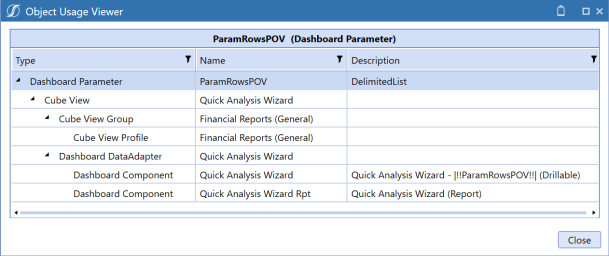
Click the parameter and then Show Objects That Reference The Selected Item. This lists all the objects that use the parameter.
Filter Data and Reduce Maintenance With Parameters › Manage Parameters
A nested parameter refers to another parameter, so you can further refine data selections for more granular data entry, reporting, and analysis. The following procedure based on the GolfStream application, describes how to create a nested parameter for a cube view to display profit by product. The parameters defined below let users filter data by product segment, then by a specific product in a selected segment.
-
Click Application > Presentation > Dashboards.
-
Click the dashboard maintenance unit in which to store the parameters.
-
Click Parameters, and then Create Parameter.
-
Define the first parameter as shown below to prompt users to select a product segment.
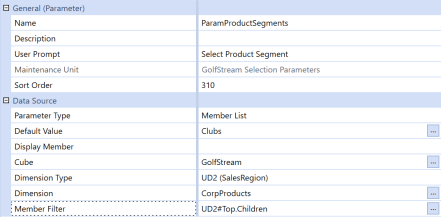
The Member Filter returns the child members of Top, in the UD2 dimension, in a drop-down list so users can select a product segment. For example, if Top has 2 children, TotalProducts and TotalServices, users can select only those members. -
Define the second parameter as shown below, referencing the first parameter in Member Filter.
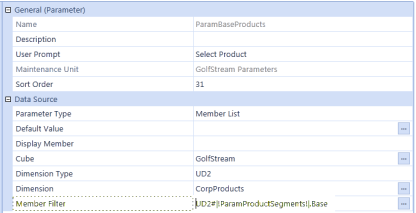
The nested parameter will list the selected product segment's base members, so users can select a base-level member in TotalProducts orTotalServices. -
Save both parameters, and then click Application > Presentation > Cube Views.
-
Select the cube view where you want to use the parameters.
-
Select the column or row that requires a parameter and enter the parameter name using pipes and exclamation points. See Syntax. The sample cube view below displays products in columns, so a column is selected.
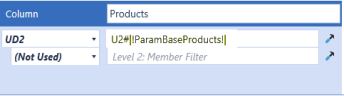
-
Select a dimension and click Member Filter Builder to ensure the ParamBaseProducts parameter references the ParamProductSegments parameter first, then returns a product list based on a selected segment.
-
Click Open Data Explorer to see how the nested parameters work. ParamProductSegements runs first, prompting you to select a segment.
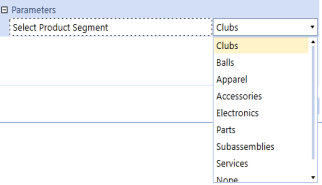
Then ParamBaseProducts runs, prompting you to select a product.